Applies to: Terminal API | Orders API | Payments API
Learn how to modify a Terminal checkout to accept other types of payments and enable additional checkout features.
The Square Terminal supports processing additional types of payments for a given order that's linked to a Terminal checkout or for an one-off payment. Use a CreateTerminalCheckout request to enable these features and a PayForOrder request to process the payment type for an order.
Each of the following sections demonstrate how to modify a CreateTerminalCheckout request to support a payment type or to enable a checkout feature.
The Square Terminal supports the delayed capture of payments made with the Square Point of Sale application. To learn how delayed capture works with card payments, see Delayed Capture of a Card Payment.
The delayed capture flow with the Terminal API works as follows:
-
Create a CreateTerminalCheckout request and set
autocompletetofalseto authorize the payment but not capture it.-
The
autocompleteattribute is a Boolean type that indicates whetherPaymentobjects are automatically completed or left in anAPPROVEDstate for later changes. The default value istrue. -
The
delay_durationattribute is a modifiable string type that indicates the length of time, in RFC 3339 format. By default,delay_actionis set toCANCEL. Ifdelay_actionis set toCOMPLETE, then payments will be automatically captured at the end of the delay window. 36 hours is the default, but more importantly 36 hours is the maximum duration for all Terminal checkouts. This property applies only when autocomplete isfalse.
Create terminal checkout
-
-
When the buyer completes the checkout flow on the Square Terminal, the Terminal checkout transitions to
COMPLETEDand includes the resultingpayment_id. ThePaymentobject now has a status ofAPPROVED. -
Call
UpdatePaymentusing thepayment_idto change the payment amount and tip amount after the payment is authorized. -
Call
CompletePaymentto capture the payment or callCancelPaymentto void the payment.
To learn more about updating payments, see Update Payment and Tip Amounts.
The Square Terminal supports accepting partial payments with a Square gift card. The following information uses a Square gift card as an example.
A buyer swipes or manually enters a Square gift card on the Square Terminal. In the Terminal checkout request under payment_options, set accept_partial_authorization to true and autocomplete to false, which allows sellers to authorize a payment for less than the total amount when the Square gift card doesn't have sufficient funds.
The seller can then initiate a follow-up checkout request to authorize the remaining amount.
The Square Terminal displays the following warning message for the insufficient balance:
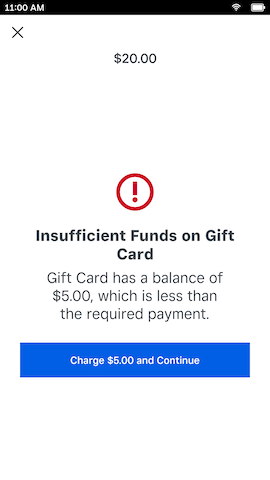
The following checkout request incorporates a partial payment authorization and a $20 order. The checkout request is for $20 USD and charging a Square gift card with a balance of $5.00.
Create terminal checkout
The Square Terminal supports manual payment card entry by providing the payment_type field in the TerminalCheckout object and in the CheckoutOptionsPaymentType enumeration. When a payment_type with the value of MANUAL_CARD_ENTRY is specified in the checkout request, the Square Terminal displays the Manual Credit Card Entry form and a virtual keyboard for the input of card information.
The following command configures the Square Terminal checkout to accept manual payment card input:
Create terminal checkout
The Square Terminal supports the ability to require or skip collecting a signature for a payment by providing the collect_signature field for the DeviceCheckoutOptions object. If collect_signature is set to true in the checkout request, the Square Terminal displays the signature collection screen during checkout. The buyer is then required to provide a signature before proceeding to the next screen.
If collect_signature is set to false, the checkout skips the signature capture screen. The default value for collect_signature is false.
Important
- The Square API version must be 2022-04-20 or later to use the
collect_signaturefield. If theSquare-Versionin the request header isn't set, the request defaults to using the API version from the Developer Console. For more information, see How Square API versioning works. - The
collect_signaturefield is applicable only in the United States and Canada. In other regions, the Square Terminal determines whether it needs to collect signatures from buyers.
The following example demonstrates how to set up the Square Terminal checkout request to require signature collection:
Create terminal checkout
The Square Terminal supports collecting an application fee from a payment. The app_fee_money property has a value amount limit.
Create a CreateTerminalCheckout request and add app_fee_money with 100 ($1.00 USD) and USD as the amount and currency, respectively.
Create terminal checkout
Call the GetPayment endpoint using the payment_id from the Terminal checkout to verify that the application fee amount is properly attached to the payment and attributed to the application ID.
Sign in to the Square Dashboard as the seller associated with your application and navigate to the Balances section to verify that the expected amount has been added to your Square balance. After you've linked a bank account, the collected fees are transferred nightly to your linked bank account.
For more information about how to collect fees from payments, see Collect Application Fees.
The following device_options settings configure the Square Terminal checkout to:
- Prompt for a tip on the Square Terminal.
- Show the receipt screen.
The device_options object sets the following behaviors:
Create terminal checkout
If the buyer uses the POS application to enter a tip amount before the checkout is sent to the Square Terminal, the seller doesn't need to use the Square Terminal to collect a tip. You already know the tip amount before calling the Terminal API, for which you use the tip_money parameter and the amount_money parameter in the checkout request.
A common scenario for this tip collection flow involves the seller using a kiosk POS application that calculates the tip and you don't want the buyer to enter the tip on the Square Terminal. The buyer-facing flow on the kiosk includes adding a tip and the kiosk then sends the total amount (including tip) to the Square Terminal as a checkout request.
The tip_money parameter can only be set and included in the request if the checkout request has tip settings disabled. The default value for the allow_tipping field in the TipSettings object is false. For more information about how to process payments with tip money, see Take Cash Payments and Update Payment and Tip Amounts.
Create terminal checkout
The team member ID is associated with an individual TeamMember record and who is associated with creating the Terminal checkout.
The team_member_id is also passed to the final payment that was created during checkout.
Create terminal checkout
For more information about setting up team members, see Team API Integration Guide.
Setting the statement_description_identifier field adds a custom identifier to the transaction description which appears on the buyer's bank statement.
For more information about statement descriptions, see Card Payment and Statement Description.
Create terminal checkout
Auto Card Surcharging (ACS) automatically adds a surcharge to eligible card‑present transactions processed on Square Terminal via the Terminal API. The system completes the following tasks:
- Applies a surcharge rate - within network and jurisdictional rules. This setting is configured for each seller within the Square dashboard.
- Provides developer API for transaction level control - to allow an auto card surcharge on the payment.
- Displays a UI element - on the Square Terminal detailing surcharge amount.
- Detects card type automatically - (e.g. debit vs credit) to determine surcharge eligibility.
- Itemizes the surcharge - on Terminal screens and receipts.
- Returns surcharge details - in the Payment object for reporting and reconciliation.
Important
In order to create a payment with a card surcharge in the seller's Square Terminal, the following requirements need to be met:
- Square Terminal must be running OS version 5.57.0000 and App version 6.79 or higher to support Auto Card Surcharging
- To ensure the Terminal is running the latest version, swipe the screen from the left to open the menu screen, navigate to
Settings > Hardware > General > About Terminal, and apply any software updates if available.
- To ensure the Terminal is running the latest version, swipe the screen from the left to open the menu screen, navigate to
- Square seller must go through surcharge onboarding in Square dashboard.
- Card surcharges are only supported in the US
- Only supported for
CARD_PRESENTandMANUAL_CARD_ENTRYpayment types
A new field is available within the DeviceCheckoutOptions to include in the Create terminal checkout request that allows an auto card surcharge if all Seller eligibility and payment instrument requirements are met.
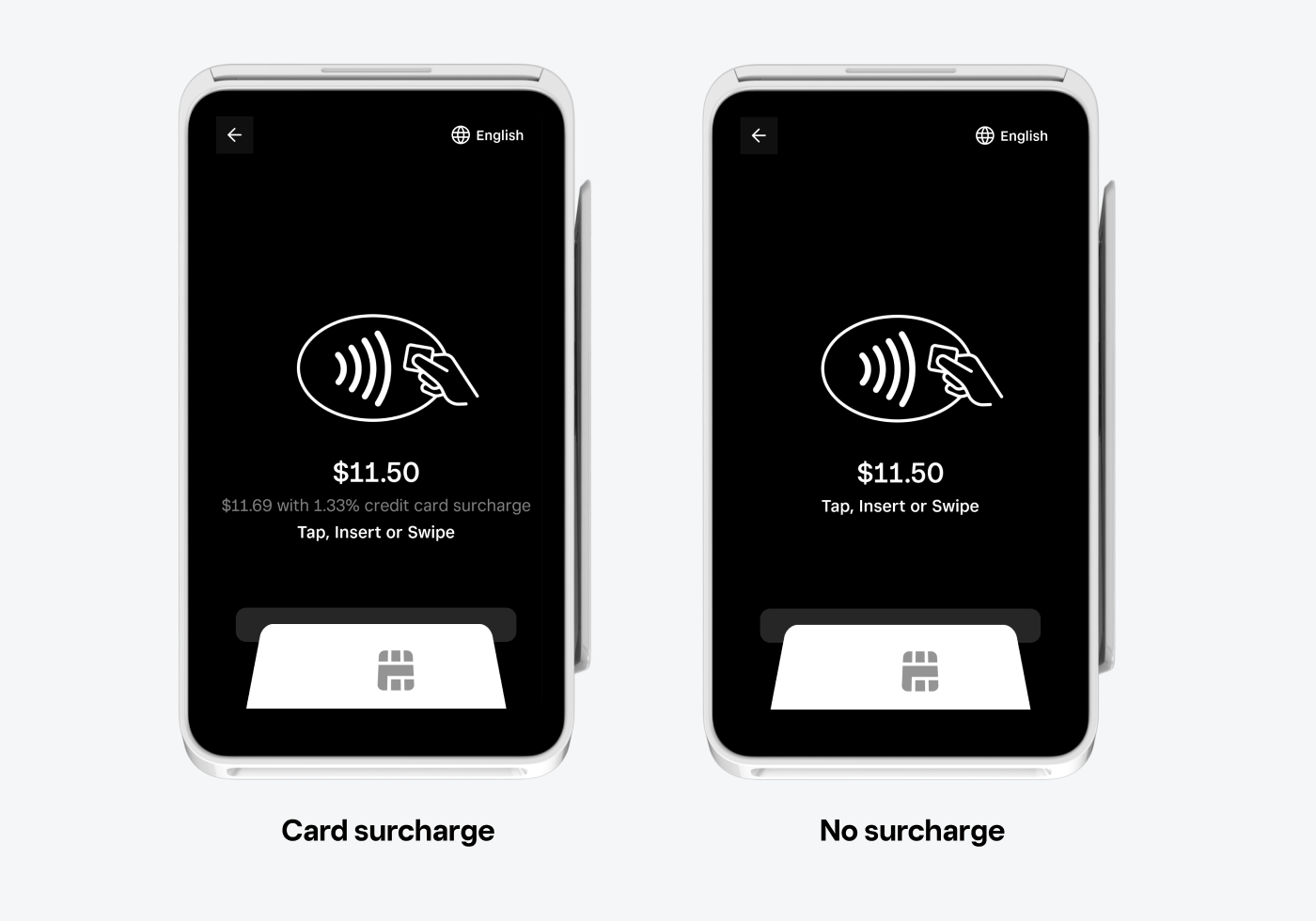
When a card surcharge is added to a checkout request, the buyer-facing checkout UI shows details of the surcharge as shown in the following figure:
Create terminal checkout