Applies to: Terminal API
Learn how to customize the Square Terminal idle screen for an improved customer experience.
You can customize the Square Terminal idle screen and showcase a seller's business and brand. The Square Terminal can display a business name, product images, or a rotating display of the business name and images that showcase products.
The following requirements and limitations apply to customizing the idle screen:
- The Square Terminal software must be running the latest version.
- You can upload images only in the Square Dashboard.
- Square recommends 1080 x 1920 pixels for the image size.
- You can only upload an image in the Square Dashboard after you've paired a Square Terminal and after you've created a device code with the Terminal API. Otherwise, the Square Dashboard doesn't display the option to upload the image.
Customizing the idle screen involves the following steps:
- Setting up the seller's business name.
- Uploading an idle screen image to the Square Dashboard.
- Configuring the display settings in the Square Terminal and showing the idle screen.
To configure a custom idle screen for the Square Terminal, you must be logged in and perform the following steps:
-
In your Square account, open the Square Dashboard.
-
In the left pane, choose Settings, and then choose Account & Settings.
-
Choose Business information, choose Locations, and then choose the seller's location from the list.
The Location Details form displays. You can also create a new location from the list.
-
Under Basic Information, review or edit the seller's business name for Location Business name.
-
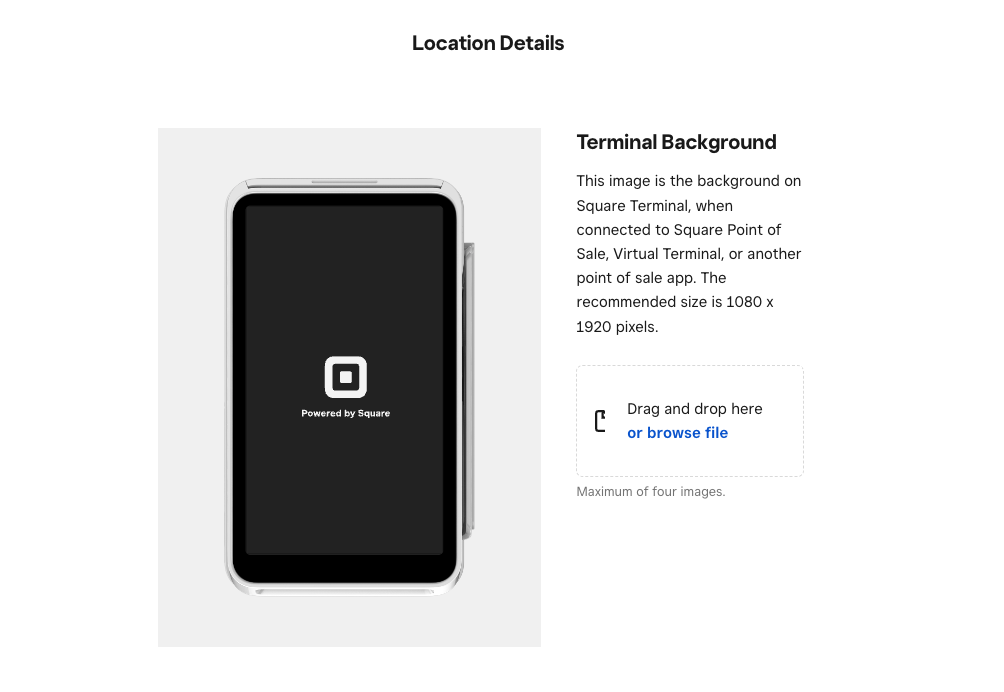
While on the Location Details form, scroll down to Terminal Background.
-
Upload one or more images for the Square Terminal to display. You should see the following section:
Important
If you don't see the Terminal Background section on the Location Details form, one or more of the following issues might have occurred:
-
The Square Terminal isn't connected.
-
The Square Terminal isn't updated to the latest software version.
-
The Square Terminal isn't paired with the POS application with a device code.
Make sure to review the requirements and limitations and connect, update, and pair the Square Terminal.
- On the Square Terminal signed-in screen, swipe from the left to open the menu screen.
- Tap Settings, tap Hardware, and then tap Display.
- Enable Show image to display the images that you uploaded to the Square Dashboard.
- Enable Show business name to display the seller location's business name.
- If you uploaded multiple images, specify the duration (in seconds) for the Square Terminal to display each image before transitioning to the next image.