Applies to: Terminal API
Learn how to display a QR code for a buyer to scan on the Square Terminal.
As part of creating custom workflows with the Terminal API, you can create a screen workflow that allows a buyer to scan a QR code. You send a Terminal action request of the QR_CODE type and configure options for the QR code in qr_code_options.
In the request body for qr_code_options, you provide the title text, body text, and barcode content that display on the screen.
For more information about encoding information to barcode content, see the open-source reference for barcode image processing standards.
You can build a screen workflow that prompts the buyer to scan the QR code and download the seller's application.
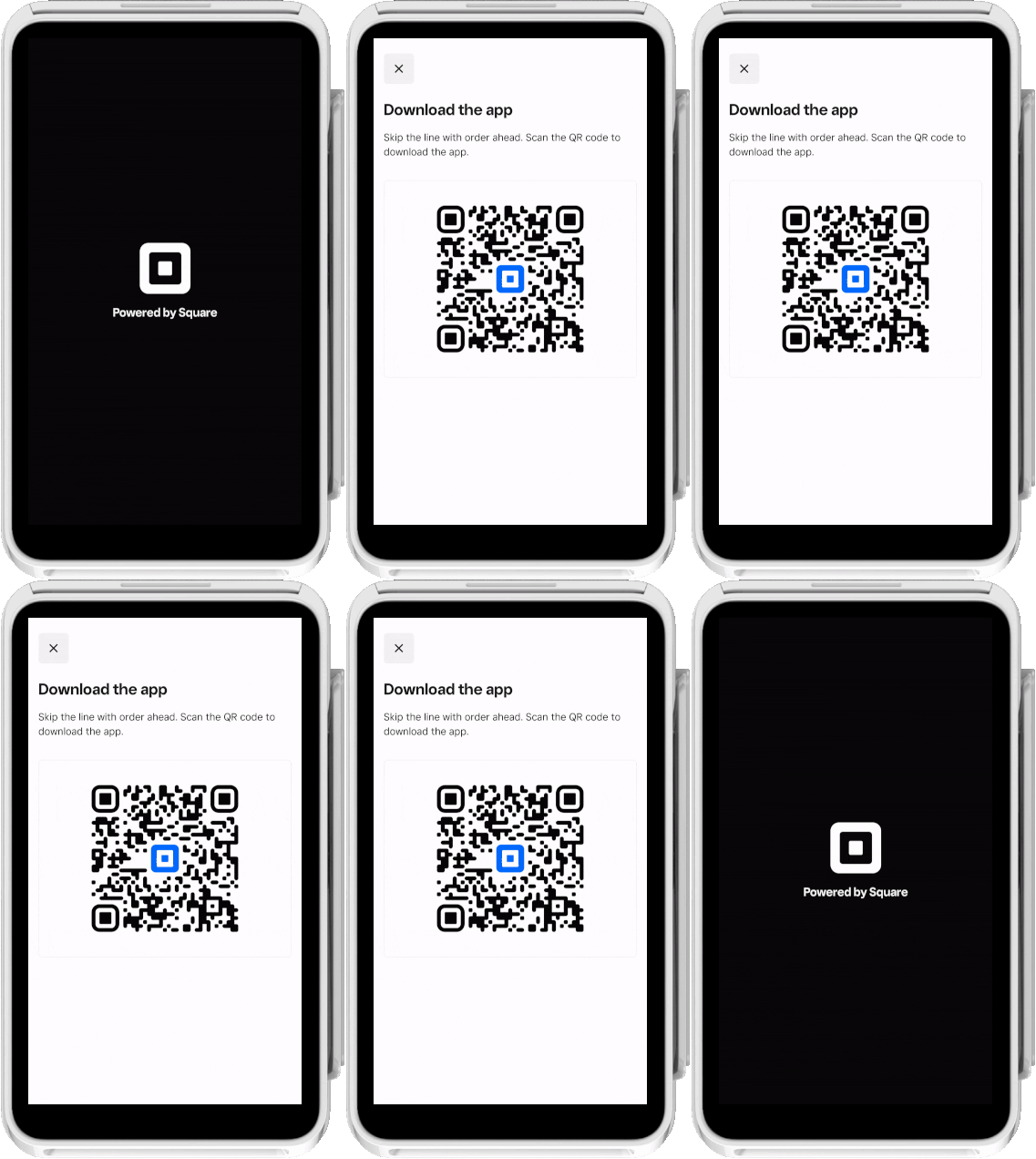
- Send a Terminal action POST request using the CreateTerminalAction endpoint and specify the
QR_CODEaction type. In theqr_code_optionsbody, provide screen text fortitleandbody.
The Terminal action response includes an action_id and a PENDING status.
{
   "action": {
     "id": "termapia:abcdefg1234567",
     "device_id": "R5WNWB5BKNG9R",
     "deadline_duration": "PT5M",
     "status": "PENDING",
     "created_at": "2022-03-09T09:01:19.622Z",
     "updated_at": "2022-03-09T09:03:06.830Z",
     "type": "QR_CODE",
     "app_id": "sq0ids-abcdefg123456789",
     "qr_code_options": {
         "title": "Download the app",
         "body": "Skip the line with order ahead. Scan the QR code to download the app.",
         "barcode_contents":
               "BEGIN:VEVENT\nSUMMARY:dtestewtse\nDTSTART:20210316T230200Z\nDTEND:20210317T000200Z\nEND:VEVENT\n"
     }
  }
}
The Square Terminal displays the QR code screen for the buyer.
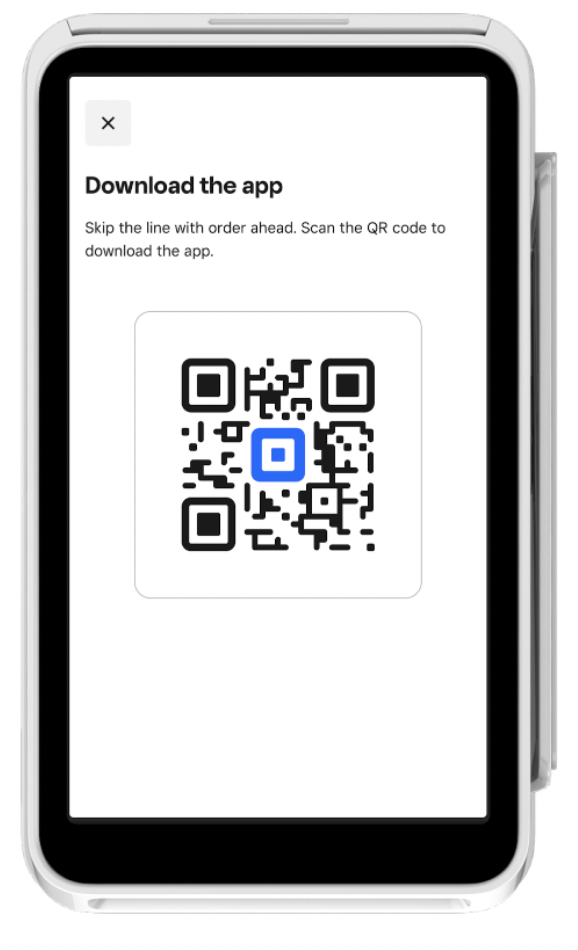
After the action reaches the COMPLETED state, the Square Terminal displays the idle screen.
- Send a GET request to retrieve the completed Terminal action and confirm its status.
The following response example shows the response with the status of COMPLETED for the QR code request:
{
  "action": {
    "id": "termapia:abcdefg1234567",
    "device_id": "R5WNWB5BKNG9R",
    "deadline_duration": "PT5M",
    "status": "COMPLETED",
    "created_at": "2022-03-09T09:01:19.622Z",
    "updated_at": "2022-03-09T09:03:06.830Z",
    "type": "QR_CODE",
    "app_id": "sq0ids-abcdefg123456789",
    "qr_code_options": {
         "title": "Download the app",
         "body": "Skip the line with order ahead. Scan the QR code to download the app.",
         "barcode_contents":
               "BEGIN:VEVENT\nSUMMARY:dtestewtse\nDTSTART:20210316T230200Z\nDTEND:20210317T000200Z\nEND:VEVENT\n"
     }
  }
}