Applies to: Terminal API
Learn how to link multiple actions for screen workflows and dismiss actions that are running on the Square Terminal.
With Terminal actions, you can configure a screen workflow that allows the Square Terminal to run two or more actions in sequence. Use the await_next_action parameter and set it to true in a CreateTerminalAction request.
This parameter instructs the Square Terminal to present a modal window with a "Please wait" message after a buyer completes an action. This window allows the Square Terminal to transition to the next action request and display the screen.
If the Square Terminal doesn't receive a follow-up CreateTerminalAction request, it dismisses the "Please wait" message and returns to the idle screen after a period of time. You can define this time period with the optional await_next_action_duration parameter, which has a default value of 5 minutes.
If you need to dismiss the "Please wait..." screen without waiting for the duration deadline of the action request to elapse, you can call the DismissTerminalAction endpoint and reference the relevant action ID. This results in a 200 response and dismisses the waiting screen if the Square Terminal is presenting it. If the buyer has already dismissed the waiting screen, the Square Terminal ignores the DismissTerminalAction action request.
When you call the DismissTerminalAction endpoint, one of the following outcomes occur:
- If the currently running action is
IN_PROGRESSfor screen action types that take buyer information, the Square Terminal cancels the action and returns to the idle screen. - If the currently running action for the QR code screen is
IN_PROGRESS, the Square Terminal completes the action and returns to the idle screen. - If the currently running action is
PENDING, the Square Terminal cancels the action. - If the currently running action has completed its operation (has the
COMPLETEDstatus) and the Square Terminal shows the “Please wait...” screen (withawait_next_actionset totrue), the Square Terminal dismisses the waiting screen and returns to the idle screen.
The DismissTerminalAction endpoint functions similarly to the CancelTerminalAction endpoint, with some differences. Square recommends the following use cases for each endpoint:
- Use DismissTerminalAction if your goal is to clear the screen and allow the Terminal API to resolve an ongoing action.
- Use CancelTerminalAction if your goal is to cancel an action.
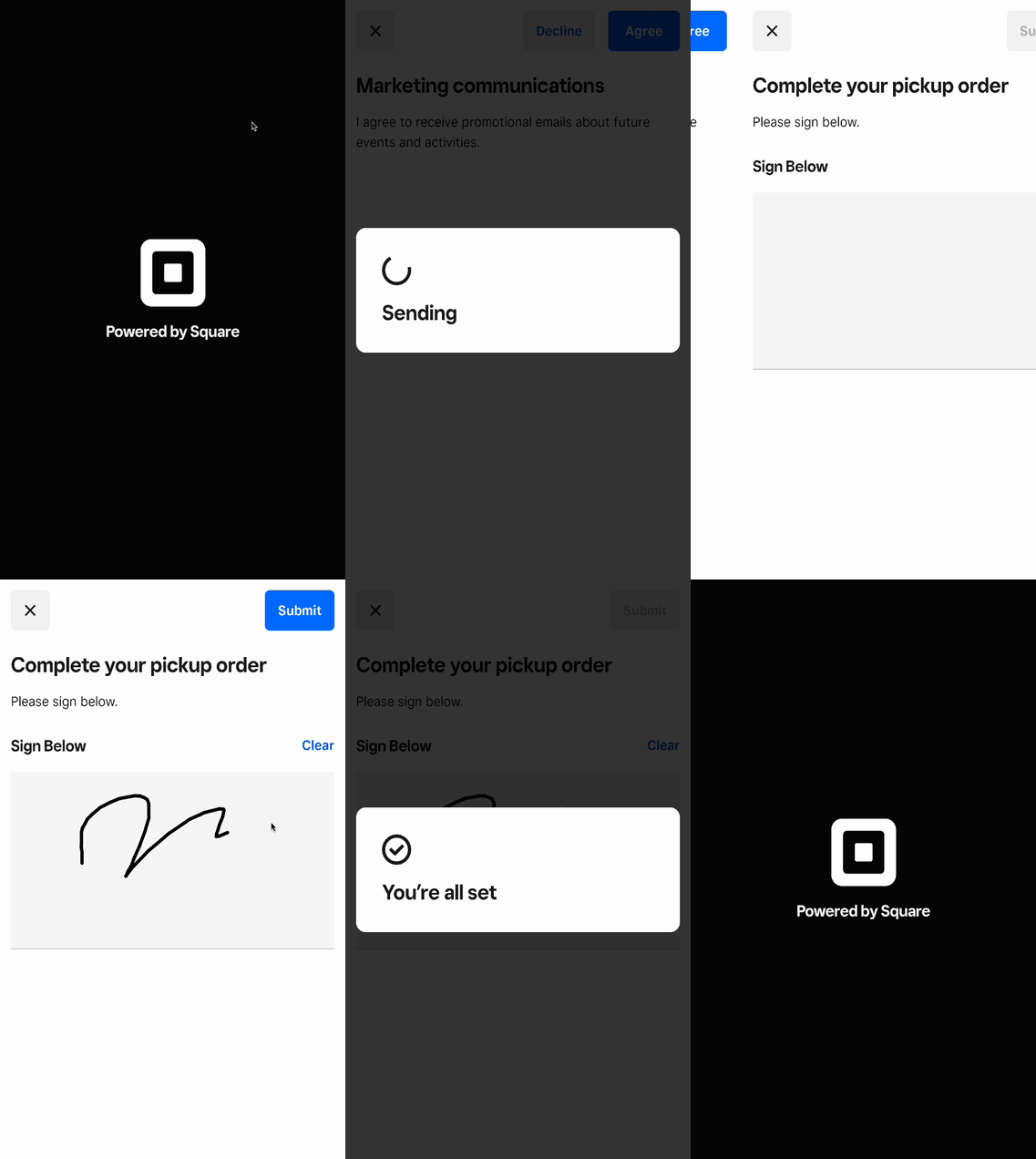
The seller wants to have the Square Terminal prompt a buyer to confirm information that's presented on the screen and to collect a signature as acknowledgment. You can use the Terminal actions endpoint to perform the following process:
- Send a
CONFIRMATIONscreen action request with theawait_next_actionparameter set totrue.
After the buyer confirms a decision, you receive the action response. The Square Terminal displays a COMPLETED status.
{
   "action": {
     "id": "termapia:abcdefg1234567",
     "device_id": "R5WNWB5BKNG9R",
     "deadline_duration": "PT5M",
     "status": "COMPLETED",
     "created_at": "2022-03-09T09:01:19.622Z",
     "updated_at": "2022-03-09T09:03:06.830Z",
     "type": "CONFIRMATION",
     "app_id": "sq0ids-abcdefg123456789",
     "await_next_action": true,
     "await_next_action_duration": "PT5M",
     "confirmation_options": {
       "title": "Marketing communications",
       "body": "I agree to receive promotional emails about future events and activities.",
       "agree_button_text": "Agree",
       "disagree_button_text": "Decline",
       "decision": {
         "has_agreed": true
       }
     }
   }
 }
- Send a subsequent
SIGNATUREscreen action and wait for the buyer to submit the signature.
The following animation illustrates the screen flow:
- If the buyer chooses to close the signature screen instead of signing it, send a DismissTerminalAction request. Pass the
idfrom theSIGNATUREaction response as theaction_idpath parameter.