**Applies to:** [Bookings API](/docs/bookings-api/what-it-is) | [Locations API](/docs/locations-api) | [Customers API](/docs/customers-api/what-it-does) | [Team API](/docs/team/overview) | [Catalog API](/docs/catalog-api/what-it-does)
Learn how to create and manage bookings for a Square seller.
## Overview
You can use the [Bookings API](https://developer.squareup.com/reference/square/bookings-api) to create appointment-based applications that allow a customer of a Square seller to book an appointment for a particular service provided by the seller or one of the seller's team members. In addition to the Bookings API, you're likely to use other related Square APIs, such as the [Locations API](https://developer.squareup.com/reference/square/locations-api), [Customers API](https://developer.squareup.com/reference/square/customers-api), [Team API](https://developer.squareup.com/reference/square/team-api), and [Catalog API](https://developer.squareup.com/reference/square/catalog-api).
In general, a booking application supports a frontend as an interface with a user to let the user book an appointment for a particular service at a particular location. At various stages of the user interaction, you need to perform the following operations targeted at the backend:
* Call the Locations API to list and retrieve business locations for the user to choose from for a particular booking.
* Call the Catalog API to create, list, or search for services that can be booked by customers online.
* Call the Customers API to create or search for a customer profile representing the user to receive the service for a booking.
* Call the Bookings API to list or retrieve a booking profile of a team member who can provide a service for a booking.
* Call the Bookings API to retrieve the booking profile of a business that provides a service in a booking.
* Call the Bookings API to search for available service segments that can be booked in a booking.
* Call the Bookings API to create, inspect, or update a booking.
Depending on the [permissions](/docs/bookings-api/what-it-is#seller-level-and-buyer-level-permissions) granted, the user might succeed in performing all or some of the actions or have access to the whole or part of resulting booking information.
In the following sections, you learn how booking data can be accessed with buyer-level and seller-level permissions and how to call the API using cURL commands.
## Access scopes of booking data
Applications with buyer-level permissions and those with seller-level permissions create different bookings and receive different booking event data. The differences are manifested in different scopes of access to the booking data by the two types of booking applications.
The following table lists the different scopes of access to booking data, with buyer-level and seller-level permissions. Attributes with read/write access can be set when a booking is [created](https://developer.squareup.com/reference/square/bookings-api/create-booking) or modified when a booking is [updated](https://developer.squareup.com/reference/square/bookings-api/update-booking). Attributes with read-only or read/write access are included in the result from [RetrieveBooking](https://developer.squareup.com/reference/square/bookings-api/retrieve-booking) or [ListBookings](https://developer.squareup.com/reference/square/bookings-api/list-bookings) and they're included as part of event data in the webhook notification of the [booking.created](https://developer.squareup.com/reference/square/webhooks/booking.created) or [booking.updated](https://developer.squareup.com/reference/square/webhooks/booking.updated) event.
When a deposit has been made to a booking, the appointment segments (as specified by the [appointment_segments](https://developer.squareup.com/reference/square/objects/Booking#definition__property-appointment_segments) attribute) of the booking cannot be updated.
| Object | Field | Buyer-level access | Seller-level access |
|--------|-------|-------------------|---------------------|
| [Booking](https://developer.squareup.com/reference/square/objects/Booking) | `id` | Read-only | Read-only |
| | `version` | Set for optimistic locking | Set for optimistic locking |
| | `status` | Read-only | Read-only |
| | `created_at` | Read-only | Read-only |
| | `updated_at` | Read-only | Read-only |
| | `start_at` | Read/write | Read/write |
| | `location_id` | Read/write[*] | Read/write[*] |
| | `address` | Read/write[*] | Read/write[*] |
| | `customer_id` | Read/write[*] | Read/write[*] |
| | `customer_note` | Read/write | Read/write |
| | `seller_note` | None | Read/write |
| | `transition_time_minutes` | None | Read-only |
| | `all_day` | Read-only | Read-only |
| | `creator_details` | None | Read-only |
| | `source` | None | Read-only |
| | `location_type` | Read/write | Read/write |
| | `appointment_segments` | Read/write[*] | Read/write |
| [AppointmentSegment](https://developer.squareup.com/reference/square/objects/AppointmentSegment) | `duration_minutes` | Read-only | Read/write |
| | `service_variation_id` | Read/write | Read/write |
| | `team_member_id` | Read/write | Read/write |
| | `service_variation_version` | Read/write | Read/write |
| | `any_team_member` | Read-only | Read-only |
| | `intermission_minutes` | None | Read-only |
| | `resource_ids` | None | Read-only |
[*] When set, the value becomes immutable and cannot be updated with the specified permissions.
## List business locations
When booking a service, a booking application must choose a bookable business location for the scheduled appointment.
A business location is represented by a [Location](https://developer.squareup.com/reference/square/objects/location) object and a booking is represented by a [Booking](https://developer.squareup.com/reference/square/objects/booking) object. To specify a business location for a booking, you reference the ID of the `Location` object in the `Booking` object.
To create and manage a booking, you need to supply the business location ID of a Square seller. To determine the location ID, you can call the [ListLocations](https://developer.squareup.com/reference/square/locations-api/list-locations) endpoint of the Locations API and present the result to the user to a location.
The following example shows how to call the `ListLocations` endpoint in a cURL command:
### Request: List business locations
### Response: List business locations
```json
{
"locations": [
{
"id": "EZDZF5AVRBXY4",
"name": "Default Test Account",
"address": {
"address_line_1": "1600 Pennsylvania Ave NW",
"locality": "Washington",
"administrative_district_level_1": "DC",
"postal_code": "20500",
"country": "US"
},
"timezone": "America/Los_Angeles",
"capabilities": [
"CREDIT_CARD_PROCESSING"
],
"status": "ACTIVE",
"created_at": "2020-04-15T00:26:32Z",
"merchant_id": "AM442MXDT6705",
"country": "US",
"language_code": "en-US",
"currency": "USD",
"phone_number": "+1 206-222-1111",
"business_name": "Mr. Mo's Hair",
"type": "PHYSICAL",
"business_hours": {
"periods": [
{
"day_of_week": "MON",
"start_local_time": "09:00:00",
"end_local_time": "17:00:00"
},
{
"day_of_week": "TUE",
"start_local_time": "09:00:00",
"end_local_time": "17:00:00"
},
{
"day_of_week": "WED",
"start_local_time": "09:00:00",
"end_local_time": "17:00:00"
},
{
"day_of_week": "THU",
"start_local_time": "09:00:00",
"end_local_time": "17:00:00"
},
{
"day_of_week": "FRI",
"start_local_time": "09:00:00",
"end_local_time": "17:00:00"
}
]
},
"business_email": "sandbox-seller@squareup.com",
"coordinates": {
"latitude": 38.897675,
"longitude": -77.036547
},
"mcc": "7299"
}
]
}
```
In this example, the seller runs the business at one location only. In addition to the business address, you can find the business hours in the result. Pay attention to the business hours so that you don't attempt to create a booking outside of the stated business hours.
## Retrieve location booking profiles
When a seller has multiple business locations, the seller can enable some or all of the locations for bookings in an eligible subscription plan. This is done in the [Square Dashboard](https://app.squareup.com/dashboard) by choosing **Appointments**, **Settings**, **Manage Subscription**, and **Manage locations**. Locations enabled this way become bookable in that the seller can create and manage bookings in the Square Dashboard or on a Square POS device.
For each bookable location, the seller can enable or disable online bookings for customers. Information about online bookings is encapsulated by the [LocationBookingProfile](https://developer.squareup.com/reference/square/objects/LocationBookingProfile) and includes the URL of the location-specific online booking site.
When creating an application that supports online booking, you might want to find out which locations allow online booking so that your application presents only those locations for the user to choose from.
To determine whether a location is enabled for booking, call the [ListLocationBookingProfiles](https://developer.squareup.com/reference/square/bookings-api/list-location-booking-profiles) endpoint without specifying any location IDs. To determine whether a bookable location is enabled for online booking, verify that the `online_booking_enabled` field is set to `true` on the returned `LocationBookingProfile` object.
### List location booking profiles request
### List location booking profiles response
The response contains all bookable locations that might be enabled for online booking.
```json
{
"location_booking_profiles": [
{
"location_id": "SNTR9180QMFGM",
"online_booking_enabled": true,
"booking_site_url": "https://broadway.squareup.com/book/SNTR9180QMFGM/acme-inc-schenectady-ny"
},
{
"location_id": "LHNSEA3K7RYSE",
"online_booking_enabled": false
}
],
"errors": []
}
```
Alternatively, you can call the [RetrieveLocationBookingProfile](https://developer.squareup.com/reference/square/bookings-api/retrieve-location-booking-profile) endpoint with a specific location ID. If the specified location isn't bookable, the result is a `404` response containing the following error message:
```json
{
"errors": [
{
"category": "INVALID_REQUEST_ERROR",
"code": "NOT_FOUND",
"detail": "This location either does not exists, or is not enabled for Bookings."
}
]
}
```
If the location is bookable but not enabled for online booking, the corresponding `LocationBookingProfile` object containing `"online_booking_enabled": false` is returned.
## List booking profiles of team members
When creating a booking, you need to specify a team member as the service provider. You reference the team member by the team member ID.
Without specifying any team member IDs, you can retrieve booking profiles of team members by calling the [ListTeamMemberBookingProfiles](https://developer.squareup.com/reference/square/bookings-api/list-team-member-booking-profiles) endpoint, as shown in the following example:
### Request: List booking profiles of team members
### Response: List booking profiles of team members
```json
{
"team_member_booking_profiles": [
{
"team_member_id": "pRNYL8gtKDFeFUtvC_Tz",
"display_name": "Sandbox Seller",
"is_bookable": true
}
],
"errors": []
}
```
Each bookable team member has a booking profile that has the `is_bookable` attribute set to `true`. Only bookable team members can be assigned to provide the service in a booking. A seller might have other employees as team members who aren't bookable for any service. These employees aren't included in the response.
Typically, you present the list of returned team members for the user to choose from to provide the service in a booking. When there is only one choice, simply make note of the returned `team_member_id` value and provide this ID to a booking afterwards.
If team member IDs are readily accessible, you can retrieve the booking profiles of specific team members by calling the [RetrieveTeamMemberBookingProfile](https://developer.squareup.com/reference/square/bookings-api/retrieve-team-member-booking-profile) or [BulkRetrieveTeamMemberBookingProfiles](https://developer.squareup.com/reference/square/bookings-api/bulk-retrieve-team-member-booking-profiles) endpoint and specifying the team member IDs.
## Search for bookable services
To create a booking, you must specify a bookable service to be provided by the seller or one of the seller's team members. A bookable service is represented by a [CatalogItemVariation](https://developer.squareup.com/reference/square/objects/CatalogItemVariation) object with its `available_for_booking` attribute set to `true`. To specify a bookable service, you reference the ID of the corresponding `CatalogItemVariation` object.
To determine the ID of a bookable service, you can call the [SearchCatalogItems](https://developer.squareup.com/reference/square/catalog-api/search-catalog-items) endpoint, set the `product_types` query expression to `[APPOINTMENT_SERVICE]`, and inspect the result. The following example shows how to do this in cURL:
### Request: Search for appointment services
### Response: Search for appointment services
```json
{
"items": [
{
"type": "ITEM",
"id": "GU3K6H36IETW5BJXNUVQIITT",
"updated_at": "2020-10-26T05:03:12.977Z",
"version": 1603688592977,
"is_deleted": false,
"present_at_all_locations": true,
"item_data": {
"name": "Hand Clean",
"description": "House cleaning service",
"variations": [
{
"type": "ITEM_VARIATION",
"id": "YW337JZR267JIALGVE5WWZR7",
"updated_at": "2020-10-26T05:03:12.977Z",
"version": 1603688592977,
"is_deleted": false,
"present_at_all_locations": true,
"item_variation_data": {
"item_id": "GU3K6H36IETW5BJXNUVQIITT",
"name": "Regular",
"ordinal": 1,
"pricing_type": "FIXED_PRICING",
"price_money": {
"amount": 8000,
"currency": "USD"
},
"service_duration": 7200000,
"available_for_booking": true,
"no_show_fee": {
"amount": 2500,
"currency": "USD"
},
"transition_time": 0
}
},
{
"type": "ITEM_VARIATION",
"id": "KRV4AOIPRWAMSBPBSSU2A2UW",
"updated_at": "2020-10-26T05:03:12.977Z",
"version": 1603688592977,
"is_deleted": false,
"present_at_all_locations": true,
"item_variation_data": {
"item_id": "GU3K6H36IETW5BJXNUVQIITT",
"name": "Power Clean",
"ordinal": 2,
"pricing_type": "FIXED_PRICING",
"price_money": {
"amount": 10000,
"currency": "USD"
},
"service_duration": 9000000,
"available_for_booking": true,
}
}
],
"product_type": "APPOINTMENTS_SERVICE",
"skip_modifier_screen": false
}
},
{
"type": "ITEM",
"id": "EC66KHZQFDXS2CUMBELGF2YK",
"updated_at": "2020-10-26T05:03:12.977Z",
"version": 1603688592977,
"is_deleted": false,
"present_at_all_locations": true,
"item_data": {
"name": "Mr. Mo's Hair",
"description": "Hair styling for men and women",
"variations": [
{
"type": "ITEM_VARIATION",
"id": "RCTL5QBJIWUUDWGOX4YWOSNR",
"updated_at": "2020-10-26T05:03:12.977Z",
"version": 1603688592977,
"is_deleted": false,
"present_at_all_locations": true,
"item_variation_data": {
"item_id": "EC66KHZQFDXS2CUMBELGF2YK",
"name": "Men's hair cut",
"ordinal": 0,
"pricing_type": "FIXED_PRICING",
"price_money": {
"amount": 2500,
"currency": "USD"
},
"service_duration": 1800000,
"transition_time": 0
}
},
{
"type": "ITEM_VARIATION",
"id": "RHMBHQBSCELBY6LUR75OCK5H",
"updated_at": "2020-10-26T05:03:12.977Z",
"version": 1603688592977,
"is_deleted": false,
"present_at_all_locations": true,
"item_variation_data": {
"item_id": "EC66KHZQFDXS2CUMBELGF2YK",
"name": "Women's hair styling",
"ordinal": 1,
"pricing_type": "FIXED_PRICING",
"price_money": {
"amount": 10000,
"currency": "USD"
},
"service_duration": 7200000
}
}
],
"product_type": "APPOINTMENTS_SERVICE"
}
}
],
"matched_variation_ids": [
"YW337JZR267JIALGVE5WWZR7",
"KRV4AOIPRWAMSBPBSSU2A2UW",
"RCTL5QBJIWUUDWGOX4YWOSNR",
"RHMBHQBSCELBY6LUR75OCK5H"
]
}
```
In the previous response, the non-zero cancellation fee (as expressed by the `no_show_fee` object) is set in the Square Dashboard. It cannot be set using the Bookings API. The service with a non-zero `now_show_fee` value cannot be booked using the Bookings API.
You can infer the locations where the service is available from the `present_at_all_locations`, `present_at_locations_ids`, and `absent_at_location_ids` attribute values of the returned services.
Make note of the ID and version number of the desired service item variation. You need to provide the ID when creating a booking afterwards. Don't use the ID of the parent item, as represented by a `CatalogItem` object.
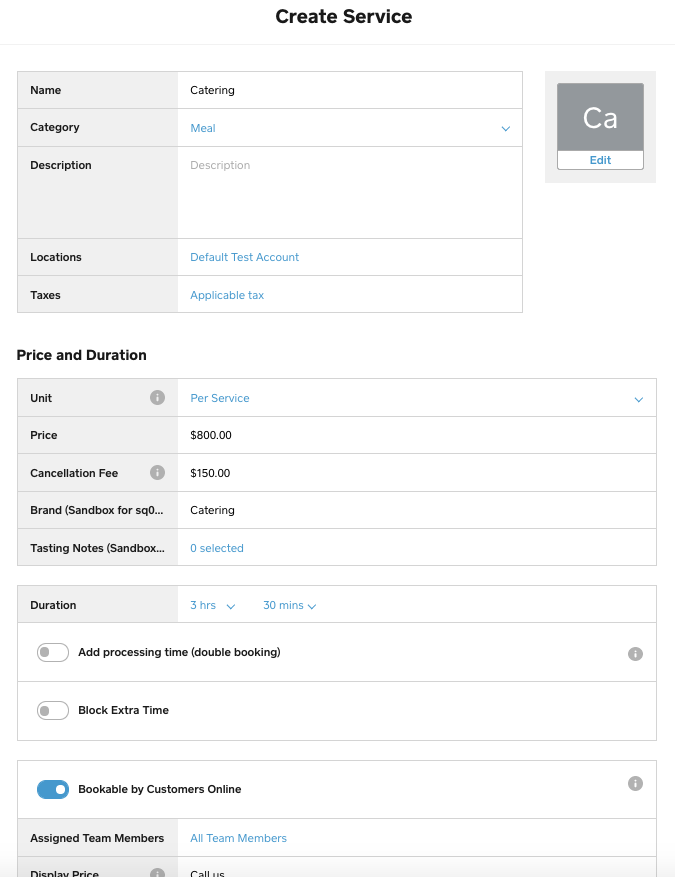
For a new bookable service, you must create a service variation, as represented by a `CatalogItemVariation` instance embedded within a `CatalogItem` object. You can do so in two ways:
* Using the Catalog API, you can call the [UpsertCatalogObject](https://developer.squareup.com/reference/square/catalog-api/upsert-catalog-object) or [BatchUpsertCatalogObjects](https://developer.squareup.com/reference/square/catalog-api/batch-upsert-catalog-objects) endpoint to create a service variation and set the `available_for_booking` attribute to `true`.
* Using the Square Dashboard, you can create a bookable service variation by enabling the **Bookable by Customers Online** option for the newly created service.
## Specify a customer for a booking
To [create a booking](https://developer.squareup.com/reference/square/bookings-api/create-booking), you must specify a customer to receive the bookable service provided by the assigned or selected team member. In the Square API, a customer is represented by a [Customer](https://developer.squareup.com/reference/square/objects/Customer) object. To specify a customer, you reference the ID of the `Customer` object.
### Find the ID of a new customer
For a new customer, you can call the Customers API to [create the customer](https://developer.squareup.com/reference/square/customers-api/create-customer), get the customer ID from the returned response, and specify the customer ID when creating a booking. The following example shows how to call the Customers API to create a new customer:
#### Request: Create a new customer
When creating a customer to be used as an input to [CreateBooking](https://developer.squareup.com/reference/square/bookings-api/create-booking), the [Customer](https://developer.squareup.com/reference/square/objects/Customer) object must have the `phone_number` attribute defined.
#### Response: Create a new customer
```json
{
"customer": {
"id": "5XSG36ZZ4WTF32XPGK0A7NZNMC",
"created_at": "2020-11-02T06:06:13.921Z",
"updated_at": "2020-11-02T06:06:13Z",
"given_name": "John",
"family_name": "Doe",
"email_address": "john.doe@acme.com",
"phone_number": "1234567890",
"preferences": {
"email_unsubscribed": false
},
"creation_source": "THIRD_PARTY",
"version": 0
}
}
```
Make note of the customer ID from the response. You need to supply it when creating a booking.
### Find the ID of an existing customer
For an existing customer, you can call the [SearchCustomers](https://developer.squareup.com/reference/square/customers-api/search-customers) or [ListCustomers](https://developer.squareup.com/reference/square/customers-api/list-customers) endpoint of the Customers API to search for or retrieve the customer profile. The following cURL example shows how to call the `SearchCustomers` endpoint to find the ID of the customer whose email address is `joel@acme.com`:
### Request: Search for a customer by an exact email address
### Response: Search for a customer by an exact email address
```json
{
"customers": [
{
"id": "W3T65DYFQCXJXAW72Y677P5SW8",
"created_at": "2020-07-24T19:49:02.070Z",
"updated_at": "2020-07-24T19:49:02Z",
"given_name": "Joel",
"family_name": "Carpenter",
"email_address": "joel@acme.com",
"address": {
"address_line_1": "1234 major street E",
"administrative_district_level_1": "WA",
"postal_code": "98101",
"country": "US"
},
"phone_number": "2061112222",
"note": "not so private note",
"company_name": "ACME",
"preferences": {
"email_unsubscribed": false
},
"creation_source": "THIRD_PARTY",
"birthday": "2001-01-01T00:00:00-00:00",
"segment_ids": [
"AM442MXDT6705.REACHABLE",
"gv2:Q4N92Z69694EDDNFYFC2D2Q5KG"
],
"version": 3
}
]
}
```
Make note of the `id` attribute value of the returned customer. You need to supply it when creating a booking.
You can use different search filters to select an existing customer by other supported attributes, including the name and phone number. For more information, see [Search for Customer Profiles](/docs/customers-api/use-the-api/search-customers).
## Retrieve a business booking profile
To determine how a Square seller accepts and manages bookings, you can call the [RetrieveBusinessBookingProfile](https://developer.squareup.com/reference/square/bookings-api/retrieve-business-booking-profile) endpoint of the Bookings API to retrieve the business booking profile of the seller. The seller identity is inferred from the access token obtained using the OAuth API. For more information, see [OAuth Walkthrough: Test Authorization with a Web Server](/docs/oauth-api/walkthrough).
The following cURL example retrieves a business booking profile:
### Request: Retrieve a business booking profile
### Response: Retrieve a business booking profile
```json
{
"business_booking_profile": {
"seller_id": "AM442MXDT6705",
"created_at": "2020-10-22T16:38:24Z",
"booking_enabled": true,
"customer_timezone_choice": "CUSTOMER_CHOICE",
"booking_policy": "ACCEPT_ALL",
"allow_user_cancel": true,
"business_appointment_settings": {
"location_types": [
"BUSINESS_LOCATION"
],
"alignment_time": "HALF_HOURLY",
"min_booking_lead_time_seconds": 0,
"max_booking_lead_time_seconds": 31536000,
"any_team_member_booking_enabled": true,
"multiple_service_booking_enabled": true,
"cancellation_fee_money": {
"currency": "USD"
},
"cancellation_policy": "CUSTOM_POLICY",
"skip_booking_flow_staff_selection": false
}
},
"errors": []
}
```
By inspecting the returned business booking profile, you can determine the booking policy for the business concerning, for example, whether the seller accepts booking requests automatically, whether multiple bookings are allowed, the booking's lead time, whether the customer can cancel a booking, and whether the customer can choose a team member.
## Search for available slots
An available slot, also called an availability, is a block of contiguous service segments that can be booked together by a customer at a particular location and starting time. Each segment includes a particular service, a particular team member providing the service, and the duration of the service offered in the segment.
Before creating a booking, you should search for availabilities by calling the [SearchAvailability](https://developer.squareup.com/reference/square/bookings-api/search-availability) endpoint of the Bookings API. You can turn an availability into a booking by simply adding a customer to it. In other words, a booking is an availability plus a customer.
The following cURL example shows how to call the `SearchAvailability` endpoint to retrieve availabilities for the service provided by specified team members between 9 AM December 1, 2021, and 9 AM December 2, 2021 (Pacific Standard Time).
In the request body, the stated local times are converted to the corresponding UTC times (`2021-12-01T17:00:00Z` and `2020-12-01T17:00:00Z`), which in this case is 8 hours ahead of the local time. The service is referenced by `service_variation_id` and the team members are referenced by the `any` expression of the `team_member_id_filter`. In this example, there is only one team member.
The specified time range to search for availabilities must be longer than or equal to 24 hours and shorter than or equal to 31 days.
### Request: Calling SearchAvailability
For the `SearchAvailability` endpoint, the `all` query expression isn't supported by the `team_member_id_filter`. If you set the `start_at_range` filter to the following, you get an error because the specified time duration is 1 second less than 1 day:
```json
{
"start_at_range": {
"start_at": "2021-12-15T16:00:00Z",
"end_at": "2021-12-16T15:59:59Z"
}
}
```
On the other hand, if you set the `start_at_range` filter to the following, you get an error because the specified time duration is 1 second longer than 31 days:
```json
{
"start_at_range": {
"start_at": "2021-10-01T17:00:00Z",
"end_at": "2021-11-01T17:00:01Z"
}
}
```
### Response: Calling SearchAvailability
If successful, the previous request returns a response similar to the following, which contains the available time slots that can be used for bookings within the specified time period. Unlisted time slots within this time period are already booked.
```json
{
"availabilities": [
{
"start_at": "2021-12-01T18:30:00Z",
"location_id": "SNTR5190QMFGM",
"appointment_segments": [
{
"duration_minutes": 60,
"team_member_id": "2_uNFkqPYqV-AZB-7neN",
"service_variation_id": "GUN7HNQBH7ZRARYZN52E7O4B",
"service_variation_version": 1613077495453
}
]
},
{
"start_at": "2021-12-01T19:00:00Z",
"location_id": "SNTR5190QMFGM",
"appointment_segments": [
{
"duration_minutes": 60,
"team_member_id": "2_uNFkqPYqV-AZB-7neN",
"service_variation_id": "GUN7HNQBH7ZRARYZN52E7O4B",
"service_variation_version": 1613077495453
}
]
},
{
"start_at": "2021-12-01T19:30:00Z",
"location_id": "SNTR5190QMFGM",
"appointment_segments": [
{
"duration_minutes": 60,
"team_member_id": "2_uNFkqPYqV-AZB-7neN",
"service_variation_id": "GUN7HNQBH7ZRARYZN52E7O4B",
"service_variation_version": 1613077495453
}
]
},
{
"start_at": "2021-12-01T20:00:00Z",
"location_id": "SNTR5190QMFGM",
"appointment_segments": [
{
"duration_minutes": 60,
"team_member_id": "2_uNFkqPYqV-AZB-7neN",
"service_variation_id": "GUN7HNQBH7ZRARYZN52E7O4B",
"service_variation_version": 1613077495453
}
]
},
{
"start_at": "2021-12-01T20:30:00Z",
"location_id": "SNTR5190QMFGM",
"appointment_segments": [
{
"duration_minutes": 60,
"team_member_id": "2_uNFkqPYqV-AZB-7neN",
"service_variation_id": "GUN7HNQBH7ZRARYZN52E7O4B",
"service_variation_version": 1613077495453
}
]
},
{
"start_at": "2021-12-01T21:00:00Z",
"location_id": "SNTR5190QMFGM",
"appointment_segments": [
{
"duration_minutes": 60,
"team_member_id": "2_uNFkqPYqV-AZB-7neN",
"service_variation_id": "GUN7HNQBH7ZRARYZN52E7O4B",
"service_variation_version": 1613077495453
}
]
},
{
"start_at": "2021-12-01T21:30:00Z",
"location_id": "SNTR5190QMFGM",
"appointment_segments": [
{
"duration_minutes": 60,
"team_member_id": "2_uNFkqPYqV-AZB-7neN",
"service_variation_id": "GUN7HNQBH7ZRARYZN52E7O4B",
"service_variation_version": 1613077495453
}
]
},
{
"start_at": "2021-12-01T22:00:00Z",
"location_id": "SNTR5190QMFGM",
"appointment_segments": [
{
"duration_minutes": 60,
"team_member_id": "2_uNFkqPYqV-AZB-7neN",
"service_variation_id": "GUN7HNQBH7ZRARYZN52E7O4B",
"service_variation_version": 1613077495453
}
]
},
{
"start_at": "2021-12-01T22:30:00Z",
"location_id": "SNTR5190QMFGM",
"appointment_segments": [
{
"duration_minutes": 60,
"team_member_id": "2_uNFkqPYqV-AZB-7neN",
"service_variation_id": "GUN7HNQBH7ZRARYZN52E7O4B",
"service_variation_version": 1613077495453
}
]
},
{
"start_at": "2021-12-01T23:00:00Z",
"location_id": "SNTR5190QMFGM",
"appointment_segments": [
{
"duration_minutes": 60,
"team_member_id": "2_uNFkqPYqV-AZB-7neN",
"service_variation_id": "GUN7HNQBH7ZRARYZN52E7O4B",
"service_variation_version": 1613077495453
}
]
},
{
"start_at": "2021-12-01T23:30:00Z",
"location_id": "SNTR5190QMFGM",
"appointment_segments": [
{
"duration_minutes": 60,
"team_member_id": "2_uNFkqPYqV-AZB-7neN",
"service_variation_id": "GUN7HNQBH7ZRARYZN52E7O4B",
"service_variation_version": 1613077495453
}
]
},
{
"start_at": "2021-12-02T00:00:00Z",
"location_id": "SNTR5190QMFGM",
"appointment_segments": [
{
"duration_minutes": 60,
"team_member_id": "2_uNFkqPYqV-AZB-7neN",
"service_variation_id": "GUN7HNQBH7ZRARYZN52E7O4B",
"service_variation_version": 1613077495453
}
]
}
],
"errors": []
}
```
The response body contains a list of time slots available for a customer to book the referenced service provided by the referenced team member in the referenced location. Each time slot can be an available appointment that starts at the time specified by `start_at` and lasts for the sum of all the `duration_minutes` values under `appointment_segments`. Appointment segments are continuous parts of an appointment in which a customer can receive one or more services provided by one or more team members. For example, if a barber cuts only hair in one appointment setting, the `appointment_segments` object has a single appointment segment. If a hair salon cuts, washes, and perms hair in one appointment setting, one appointment might have three segments of services each of which might be provided by a different team member or the same team member. In this example, an appointment has a single service segment of 60 minutes and can start on the hour or the half hour.
If any appointment slot is already booked, that slot and any affected adjacent slots aren't returned in the response. In this example, the team member is already booked for another appointment between the local times of 12 PM and 1 PM on November 5, 2020 (or 2020-11-05T20:00:00Z and 2020-11-05T21:00:00Z) and, hence, is unavailable for any 60-minute appointments starting at 11:30 AM or 12:00 PM. The team member would be double booked during the last half of the 11:30 AM appointment and double booked during the entire 12:00 PM appointment. Missing in the response are the two time slots starting at 2020-11-05T19:30:00Z and 2020-11-05T20:00:00Z.
In normal business operation, you need to display the available appointment slots for the customer to browse through and choose one. With the chosen appointment slot, you can proceed to create a booking.
## Create a booking
With an available appointment slot returned from the [SearchAvailability](https://developer.squareup.com/reference/square/bookings-api/search-availability) request, you have all the required information, except for the customer ID, at your disposal to call [CreateBooking](https://developer.squareup.com/reference/square/bookings-api/create-booking) to create a booking. Ideally, you should already have the customer ID because you have interacted with the customer in the normal workflow of your application.
You cannot use the Bookings API to book a service that has a non-zero cancellation fee set on its `no_show_fee` attribute.
You can provide a customer address when booking appointments, as long as the `location_type` is set to `Customer_Location`.
The following cURL example creates a booking for the 60-minute service (`"service_variation_id": "GUN7HNQBH7ZRARYZN52E7O4B"`) provided by the team member (`"team_member_id": "2_uNFkqPYqV-AZB-7neN"`) in the location (`"location_id": "SNTR5190QMFGM"`) starting at 1 PM local time (or 2020-11-05T21:00:00Z UTC). By extracting this information from a retrieved availability, you can successfully create an appointment, provided that you supply a valid customer ID.
### Request: Create a booking
If your application has seller-level permissions or if the seller allows buyers to create a booking with multiple services, you can call the `CreateBooking` endpoint with more than one appointment segments (as elements of the `appointment_segments` list) with any valid combination of services and providers.
The Bookings API requires that the [Customer](https://developer.squareup.com/reference/square/objects/Customer) object referenced by the input parameter of `customer_id` have the `phone_number` attribute defined. If the specified `Customer` doesn't have `phone_number` specified, you get a `400` error response with the following error message:
```
"errors": [
{
"category": "INVALID_REQUEST_ERROR",
"code": "BAD_REQUEST",
"detail": "is invalid",
"field": "phone"
}
]
```
For the `seller_note` attribute (or another seller-accessible attribute) to be set in the catalog, the caller must have seller-level permissions. With buyer-level permissions, any application-set value is ignored. For more information about buyer-accessible and seller-accessible booking data, see [Access scopes of booking data](/docs/bookings-api/use-the-api#access-scopes-of-booking-data).
### Response: Create a booking
If successful, the previous request returns a response similar to the following:
```json
{
"booking": {
"id": "zkras0xv0xwswx",
"version": 0,
"status": "ACCEPTED",
"created_at": "2020-10-28T15:47:41Z",
"updated_at": "2020-10-28T15:47:41Z",
"location_id": "LEQHH0YY8B42M",
"customer_id": "EX2QSVGTZN4K1E5QE1CBFNVQ8M",
"customer_note": "",
"seller_note": "",
"location_type": "CUSTOMER_LOCATION",
"start_at": "2020-11-26T13:00:00Z",
"appointment_segments": [
{
"duration_minutes": 60,
"service_variation_id": "RU3PBTZTK7DXZDQFCJHOK2MC",
"team_member_id": "TMXUrsBWWcHTt79t",
"service_variation_version": 1599775456731
},
"address": {
"address_line_1": "1955 Broadway",
"address_line_2": "Suite 600",
"locality": "Oakland",
"administrative_district_level_1": "CA",
"postal_code": "94612",
}
]
},
"errors": []
}
```
In this example, the caller has the seller-level permissions. Otherwise, the `seller_note` field wouldn't be present in the response and the `creator_type` would be `CUSTOMER`.
Make note of the booking ID. You need to provide it later to retrieve or update this booking. Typically, you should let the customer keep a record of the booking ID and ask the customer to supply it when inquiring or changing the appointment in the future.
## Retrieve a booking
To retrieve an existing booking, call the [RetrieveBooking](https://developer.squareup.com/reference/square/bookings-api/retrieve-booking) endpoint with the booking ID specified as a path parameter. The following cURL example retrieves the booking created in [Create a booking](#create-a-booking).
The Bookings API also supports retrieving multiple bookings in a single call. To do so, call [BulkRetrieveBookings](https://developer.squareup.com/reference/square/bookings-api/bulk-retrieve-bookings) and specify one or more booking IDs.
### Request: Retrieve a booking
### Response: Retrieve a booking
```json
{
"booking": {
"id": "k1jczlajuhy2xg",
"version": 0,
"status": "ACCEPTED",
"created_at": "2021-11-29T19:14:41Z",
"updated_at": "2021-11-29T19:14:41Z",
"location_id": "SNTR5190QMFGM",
"customer_id": "K48SGF7H116G59WZJRMYJNJKA8",
"customer_note": "Window seat, please",
"start_at": "2021-12-16T17:00:00Z",
"all_day": false,
"address": {
"address_line_1": "1955 Broadway",
"address_line_2": "Suite 600",
"locality": "Oakland",
"administrative_district_level_1": "CA",
"postal_code": "94612",
},
"appointment_segments": [
{
"duration_minutes": 60,
"service_variation_id": "GUN7HNQBH7ZRARYZN52E7O4B",
"team_member_id": "2_uNFkqPYqV-AZB-7neN",
"service_variation_version": 1613077495453,
"any_team_member": false,
"intermission_minutes": 0
}
],
"seller_note": "Complementary VIP service",
"transition_time_minutes": 0,
"creator_details": {
"creator_type": "TEAM_MEMBER",
"team_member_id": "2_uNFkqPYqV-AZB-7neN"
},
"source": "API",
"location_type": "CUSTOMER_LOCATION"
},
"errors": []
}
```
In this example, the caller has seller-level permissions. With buyer-level permissions, the result would be a subset of the above. For more information about buyer-accessible and seller-accessible booking data, see [Access scopes of booking data](/docs/bookings-api/use-the-api#access-scopes-of-booking-data).
## List bookings
To browse a collection of a seller's bookings, call the [ListBookings](https://developer.squareup.com/reference/square/bookings-api/list-bookings) endpoint. You can scope the retrieval to a particular customer, a service-providing team member, a service location, or a specific range of the service-starting time.
You define the retrieval scopes by specifying in the URL the path parameters of `customer_id`, `team_member_id`, `location_id`, `start_at_min`, or `start_at_max`. Notice that the start-time range cannot be longer than 31 days.
When calling `ListBookings`, you can specify a customer ID, location ID, team member ID, or range of start times. If none of these are set, their default values are used as follows:
* If `customer_id` isn't specified, bookings of all customers of the seller are returned.
* If `team_member_id` isn't specified, bookings of all team members of the seller are returned.
* If `start_at_min` isn't specified, the current time becomes the earliest start time by which to retrieve bookings.
* If `start_at_max` isn't specified, 31 days after `start_at_min` is the latest start time by which to retrieve bookings.
The following is an example showing how to list bookings with explicit specifications of a location and a start-time range.
### Request: List bookings at a location and a start-time range
The following cURL example retrieves all available bookings with services provided at a specific business location ("SNTR5190QMFGM") of a seller and starting between a specified time range ("2021-12-01T00:00:00Z" - "2021-12-30T23:59:59Z"):
### Response: List bookings at a location and a start-time range
The following shows an example response of two bookings that has their `start_at` times within the specified `start_at` duration:
* They start between 17:00:00 UTC, December 1 (“2021-12-01T17:00:00Z”) and 17:00:00 UTC, December 15, 2021 (“2021-12-15T17:00:00Z”).
* They're reserved for different customers ("SWPBCE0VRCXSQ57EEJ1PP77TKG" and "K48SGF7H116G59WZJRMYJNJKA8").
* The first booking is created by the customer and the second booking is created by the seller.
* They're serviced by the same team member ("2_uNFkqPYqV-AZB-7neN").
```json
{
"bookings": [
{
"id": "b3s9u8hu1ceaug",
"version": 0,
"status": "ACCEPTED",
"created_at": "2021-11-16T18:21:12Z",
"updated_at": "2021-11-30T17:55:21Z",
"location_id": "SNTR5190QMFGM",
"customer_id": "SWPBCE0VRCXSQ57EEJ1PP77TKG",
"customer_note": "John's hair",
"start_at": "2021-12-01T18:00:00Z",
"all_day": false,
"address": {
"address_line_1": "1955 Broadway",
"address_line_2": "Suite 600",
"locality": "Oakland",
"administrative_district_level_1": "CA",
"postal_code": "94612",
},
"appointment_segments": [
{
"duration_minutes": 30,
"service_variation_id": "GUN7HNQBH7ZRARYZN52E7O4B",
"team_member_id": "2_uNFkqPYqV-AZB-7neN",
"service_variation_version": 1613077495453,
"any_team_member": false,
"intermission_minutes": 0
}
],
"seller_note": "",
"transition_time_minutes": 0,
"creator_details": {
"creator_type": "CUSTOMER"
},
"source": "API",
"location_type": "CUSTOMER_LOCATION"
},
{
"id": "k1jczlajuhy2xg",
"version": 0,
"status": "ACCEPTED",
"created_at": "2021-11-29T19:14:41Z",
"updated_at": "2021-11-29T19:14:41Z",
"location_id": "SNTR5190QMFGM",
"customer_id": "K48SGF7H116G59WZJRMYJNJKA8",
"customer_note": "Window seat, please",
"start_at": "2021-12-16T17:00:00Z",
"all_day": false,
"appointment_segments": [
{
"duration_minutes": 60,
"service_variation_id": "GUN7HNQBH7ZRARYZN52E7O4B",
"team_member_id": "2_uNFkqPYqV-AZB-7neN",
"service_variation_version": 1613077495453,
"any_team_member": false,
"intermission_minutes": 0
}
],
"seller_note": "Complementary VIP service",
"transition_time_minutes": 0,
"creator_details": {
"creator_type": "TEAM_MEMBER",
"team_member_id": "2_uNFkqPYqV-AZB-7neN"
},
"source": "API",
"location_type": "BUSINESS_LOCATION"
}
],
"errors": []
}
```
In this example, the result contains two bookings. The first booking is created by the customer because `creator_type` has a value of `CUSTOMER`. The second booking is created by the seller because the `creator_type` has a value of `TEAM_MEMBER`. The caller has seller-level permissions.
## Update a booking
After an appointment is created, your application user can call the [UpdateBooking](https://developer.squareup.com/reference/square/bookings-api/update-booking) endpoint to make certain changes. Because this endpoint supports sparse updates, you only need to specify the desired fields. Unspecified fields aren't affected by the operation.
Updatable booking data varies depending on whether the caller has buyer-level or seller-level permissions. Updatable booking properties are summarized in the table in [Access scopes of booking data](/docs/bookings-api/use-the-api#access-scopes-of-booking-data).
For updates that modify the appointment's start time and date (`start_at`) with buyer-level permissions, you should call [SearchAvailability](/docs/bookings-api/use-the-api#search-for-available-slots) first to retrieve available appointment segments to ensure that the attempted update doesn't result in duplicated bookings. With seller-level permissions, this isn't necessary if the seller permits double bookings.
You must pass the entire `address` object when updating the `address` field; sparse updates are not allowed. For example, you cannot update only the `address_line_1` subfield.
### Request: Update a booking to a new start time and date
The following cURL example moves an existing appointment's start time and date to 2021-12-17T18:00:00Z:
### Response: Update a booking to a new start time and date
```json
{
"booking": {
"id": "k1jczlajuhy2xg",
"version": 1,
"status": "ACCEPTED",
"created_at": "2021-11-29T19:14:41Z",
"updated_at": "2021-11-29T22:44:53Z",
"location_id": "SNTR5190QMFGM",
"customer_id": "K48SGF7H116G59WZJRMYJNJKA8",
"start_at": "2021-12-16T18:00:00Z",
"all_day": false,
"address": {
"address_line_1": "1955 Broadway",
"address_line_2": "Suite 600",
"locality": "Oakland",
"administrative_district_level_1": "CA",
"postal_code": "94612",
},
"appointment_segments": [
{
"duration_minutes": 60,
"service_variation_id": "GUN7HNQBH7ZRARYZN52E7O4B",
"team_member_id": "2_uNFkqPYqV-AZB-7neN",
"service_variation_version": 1613077495453,
"any_team_member": false,
"intermission_minutes": 0
}
],
"seller_note": "Complementary VIP service",
"transition_time_minutes": 0,
"creator_details": {
"creator_type": "TEAM_MEMBER",
"team_member_id": "2_uNFkqPYqV-AZB-7neN"
},
"source": "API",
"location_type": "CUSTOMER_LOCATION"
},
"errors": []
}
```
## Cancel a booking
Your application user can call the [CancelBooking](https://developer.squareup.com/reference/square/bookings-api/cancel-booking) endpoint to cancel an existing booking as long as all of the following criteria are met:
* With seller-level permissions, the caller can cancel a booking provided that the booking's status is `ACCEPTED`.
* With buyer-level permissions, the caller can cancel a booking if all of the following are true:
* The customer is allowed to cancel his or her bookings, which can be created by the customer or by others. You can determine whether the customer can cancel bookings by inspecting the [allow_user_cancel](https://developer.squareup.com/reference/square/objects/BusinessBookingProfile#definition__property-allow_user_cancel) attribute on the [BusinessBookingProfile](https://developer.squareup.com/reference/square/objects/BusinessBookingProfile) returned from a call to the [RetrieveBusinessBookingProfile](https://developer.squareup.com/reference/square/bookings-api/retrieve-business-booking-profile) endpoint.
* The cancellation window hasn't elapsed for the booking under consideration. You can determine the duration of the cancellation window by inspecting the [cancellation_window_seconds](https://developer.squareup.com/reference/square/objects/BusinessAppointmentSettings#definition__property-cancellation_window_seconds) value on the [business_appointment_settings](https://developer.squareup.com/reference/square/objects/BusinessBookingProfile#definition__property-business_appointment_settings) attribute of [BusinessBookingProfile](https://developer.squareup.com/reference/square/objects/BusinessBookingProfile) returned from a call to the [RetrieveBusinessBookingProfile](https://developer.squareup.com/reference/square/bookings-api/retrieve-business-booking-profile) endpoint. The cancellation window for a booking has elapsed if the time interval (in seconds) from the booking's `start_time` to the current time is shorter than the `cancellation_window_seconds` value.
* The booking's start time isn't in the past.
* The booking's status is `PENDING` or `ACCEPTED`.
### Request: Cancel a booking
The following cURL example shows how to cancel a booking:
The `booking_version` value must match the `version` value of the [Booking](https://developer.squareup.com/reference/square/objects/Booking) object. Otherwise, an error is returned.
### Response: Cancel a booking
If successful, the previous request to cancel the booking returns a response similar to the following:
```json
{
"booking": {
"id": "k1jczlajuhy2xg",
"version": 2,
"status": "CANCELLED_BY_SELLER",
"created_at": "2021-11-29T19:14:41Z",
"updated_at": "2021-11-30T00:20:31Z",
"location_id": "SNTR5190QMFGM",
"customer_id": "K48SGF7H116G59WZJRMYJNJKA8",
"start_at": "2021-12-16T18:00:00Z",
"all_day": false,
"address": {
"address_line_1": "1955 Broadway",
"address_line_2": "Suite 600",
"locality": "Oakland",
"administrative_district_level_1": "CA",
"postal_code": "94612",
},
"appointment_segments": [
{
"duration_minutes": 60,
"service_variation_id": "GUN7HNQBH7ZRARYZN52E7O4B",
"team_member_id": "2_uNFkqPYqV-AZB-7neN",
"service_variation_version": 1613077495453,
"any_team_member": false,
"intermission_minutes": 0
}
],
"seller_note": "Complementary VIP service",
"transition_time_minutes": 0,
"creator_details": {
"creator_type": "TEAM_MEMBER",
"team_member_id": "2_uNFkqPYqV-AZB-7neN"
},
"source": "API",
"location_type": "CUSTOMER_LOCATION"
},
"errors": []
}
```
If the caller has buyer-level permissions, the returned `status` is `"CANCELLED_BY_CUSTOMER"`. Seller-specific information, such as `seller_note`, isn't included in the response.
With buyer-permissions only, if the specified booking's start time is in the past, the caller gets the following error response:
```json
{
"errors": [
{
"category": "INVALID_REQUEST_ERROR",
"code": "BAD_REQUEST",
"detail": "The cancellation period for this booking has ended.",
"field": "base"
}
]
}
```